Start Planning Your Week
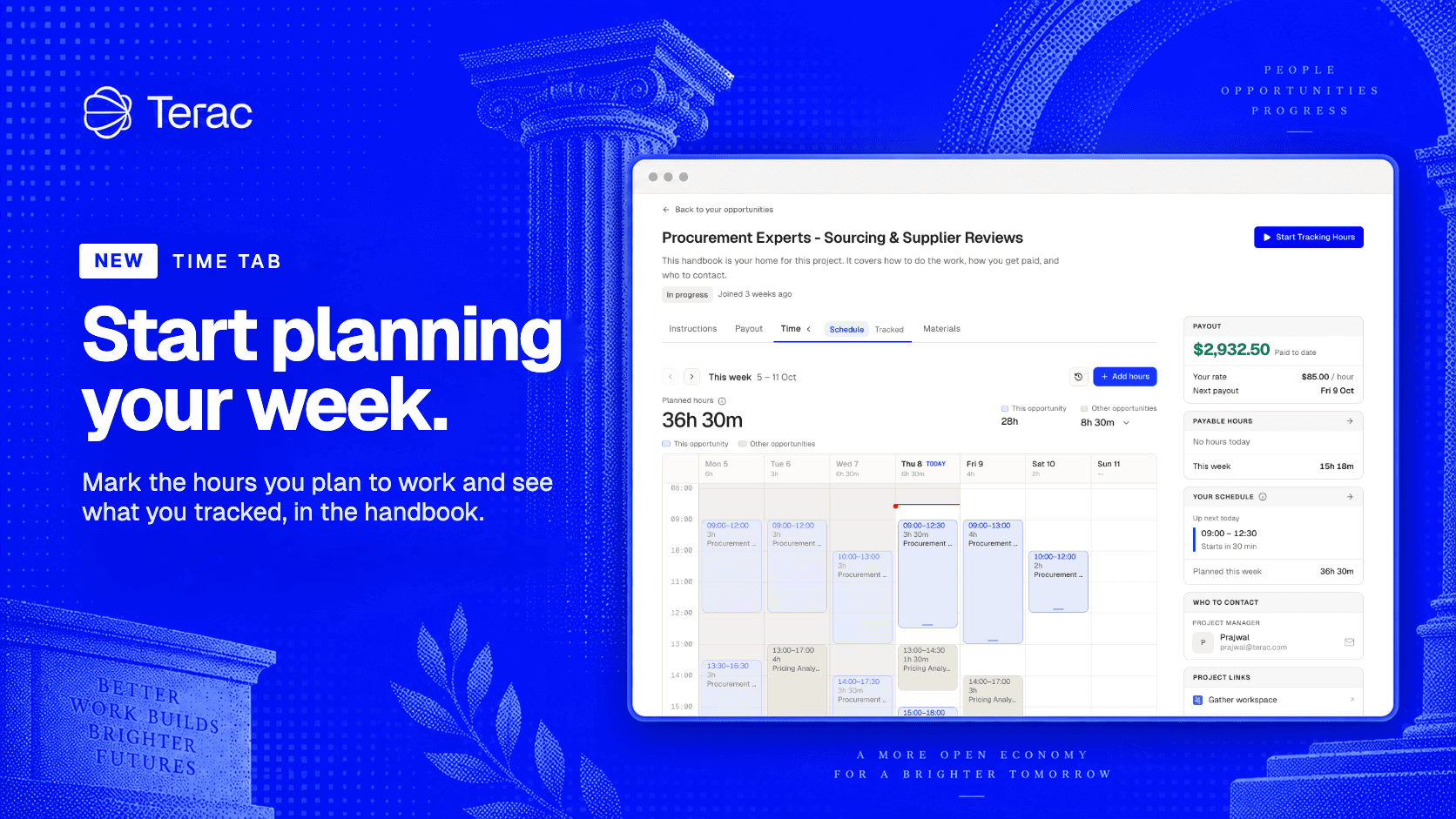
An opportunity that runs for weeks takes up a good part of your time, and the plans you had at the start of the week can change along the way.
That’s why we’ve added a Time tab to the handbook, where you mark the hours you plan to work and see the hours you actually worked. The tab has two parts, Schedule and Tracked.
You and your project manager both see those hours, so your project manager knows how many hours the whole team can count on without asking you every day.
For you, it’s a way to organize your time however suits you best, and to see how much time you actually worked and how much of it we’ll pay you for, with full visibility on each of your opportunities.
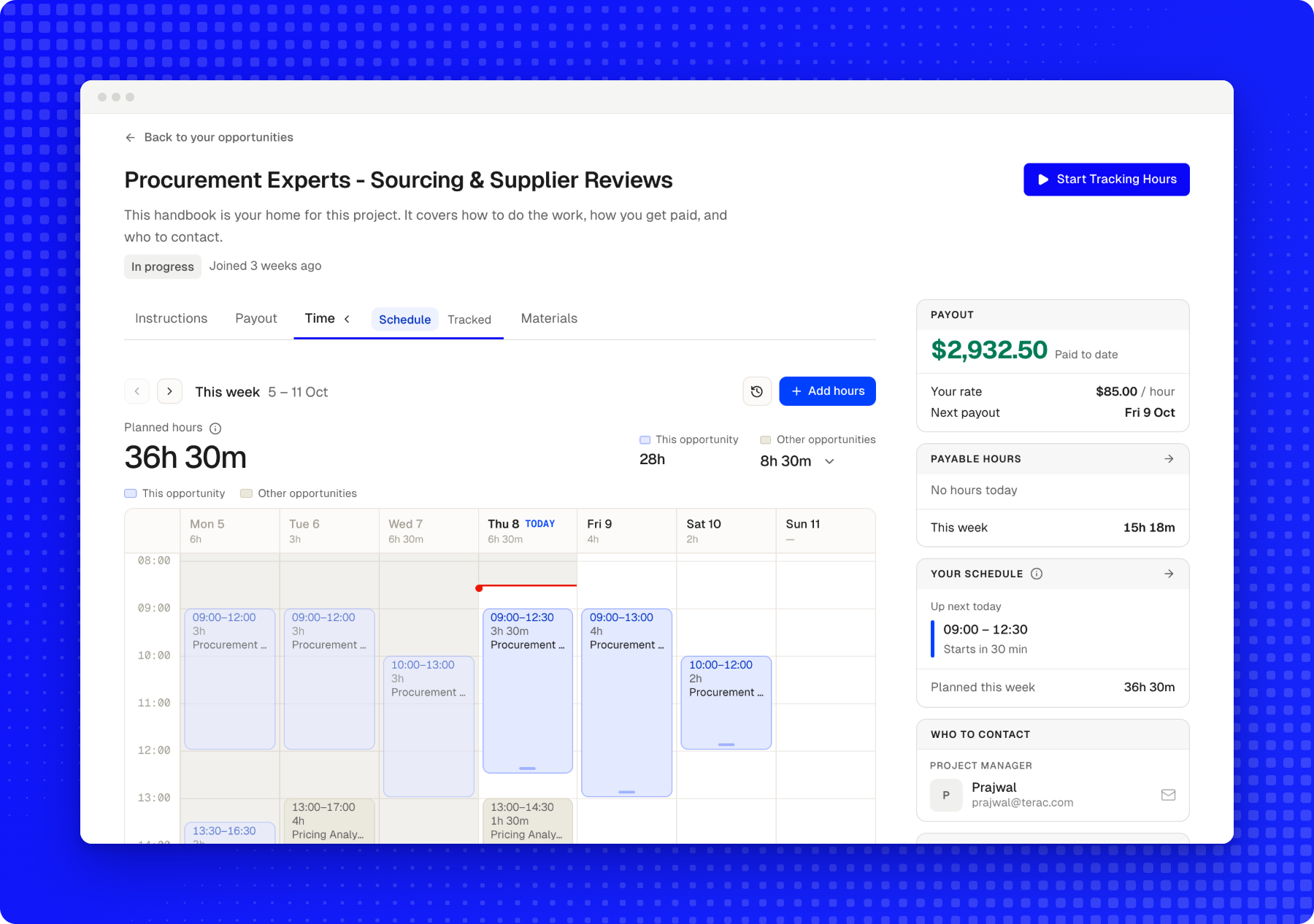
Schedule
You can organize your week across the opportunities you’re part of. You mark which days and at what times you’ll be available, this week or next. If your plans change, you move your hours and your project manager sees the change as soon as you save, and your week stays organized and ready to work.
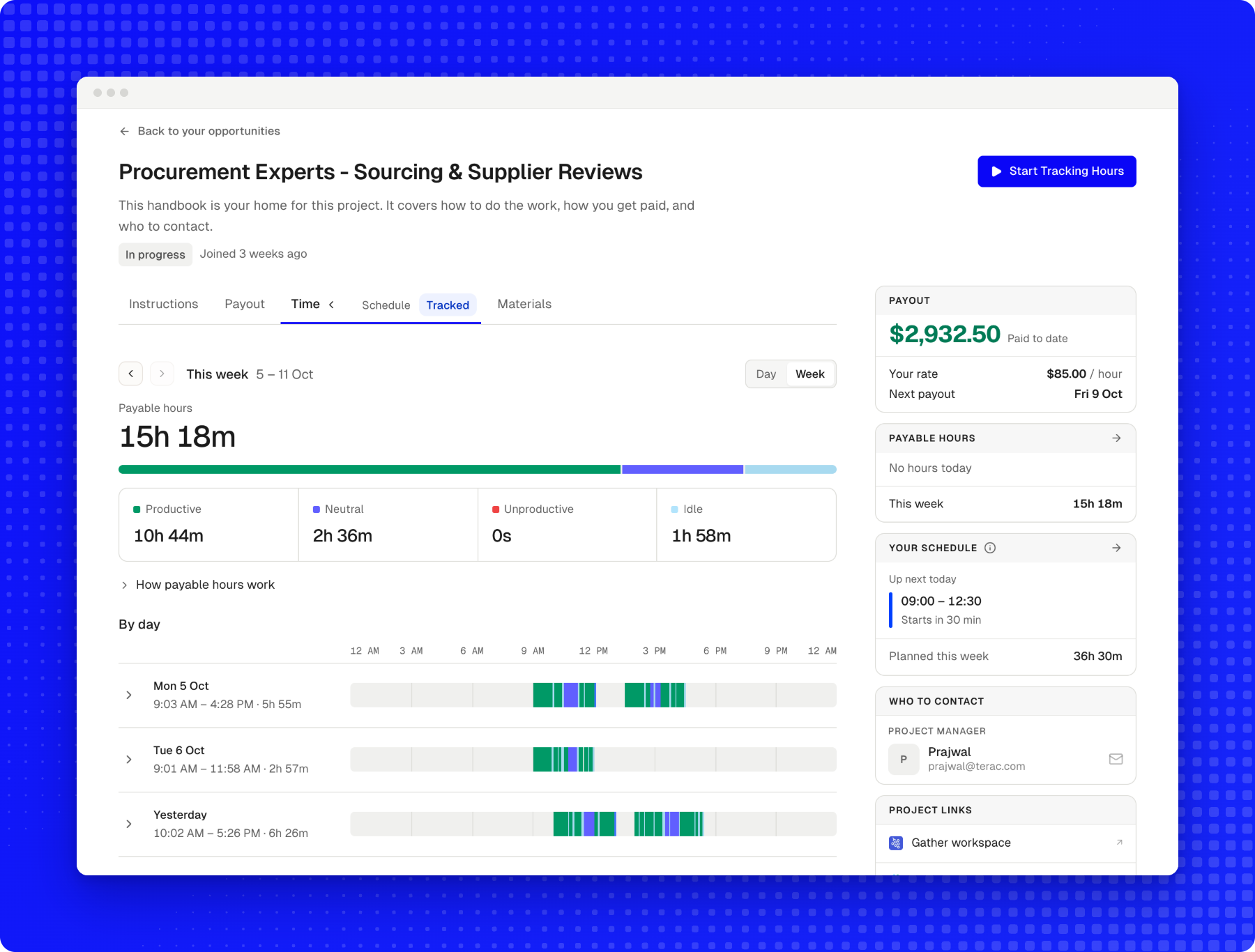
Tracked
Here you can see the hours you actually worked: which days you worked, how many hours you put in each day, and how many of those hours are paid, by day or by week. That way, all the time you’ve worked on that opportunity is in view.
Finding the Time tab
Open your opportunity’s handbook from Home, where each opportunity has a Handbook link, then select Time. The handbook is each opportunity’s page, with how to do the work, how you get paid, and who to contact. You can read more in the handbook announcement.
Contents
